There was a problem loading the comments.

How do I setup my phone number?

Support Portal  »  Knowledgebase  »  Viewing Article

  Print

You can setup your phone number by doing the following:

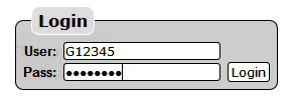


  • Log in using your Account ID: e.g. G12345 & the password sent to you by Gridare (which you can see from the Gridare Welcome Email)


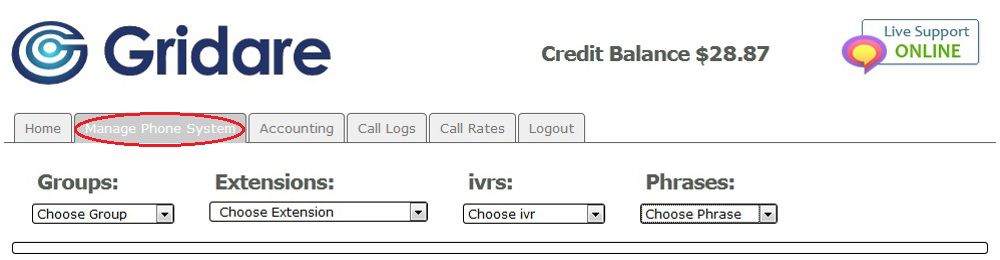
  • Once logged in go to the Manage Phone System tab


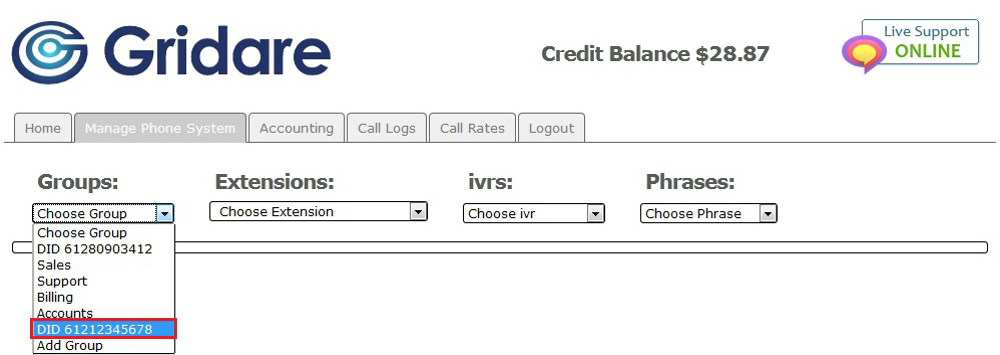
  • Go to Groups; click the drop down menu and choose the group (e.g. DID 61211223344) that you want to setup


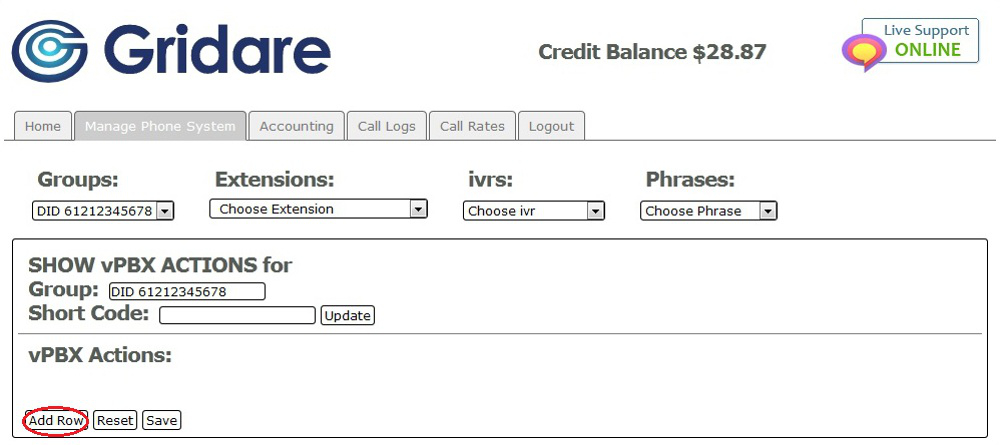
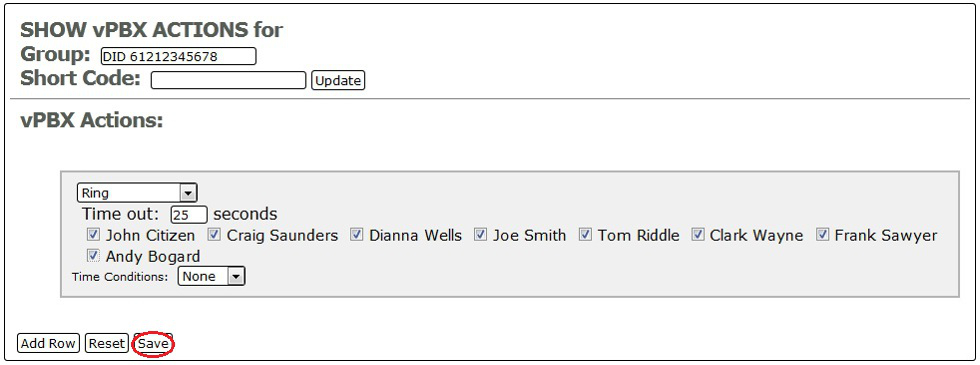
  • Under vPBX Actions click on Add Row


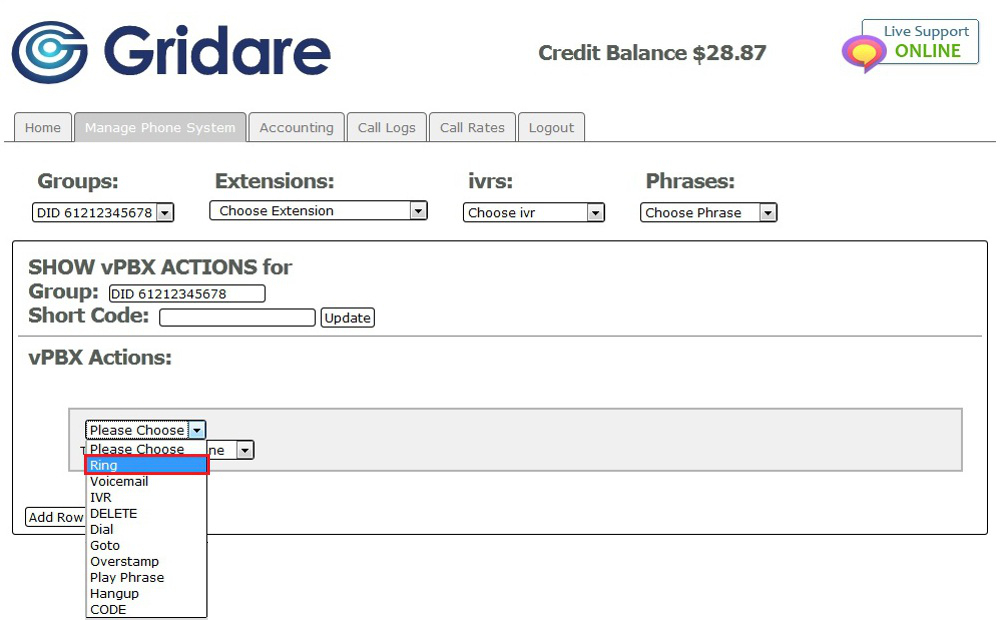
  • Click the drop down menu of the newly created row and choose Ring


  • On Time Out you can set how long you would like your phone(s) to ring (e.g. entering 25 seconds will ring your phone(s) for 25 seconds)


  • Put a tick or enable the Extensions on the newly created row


  • Click on Save at the bottom to save the settings


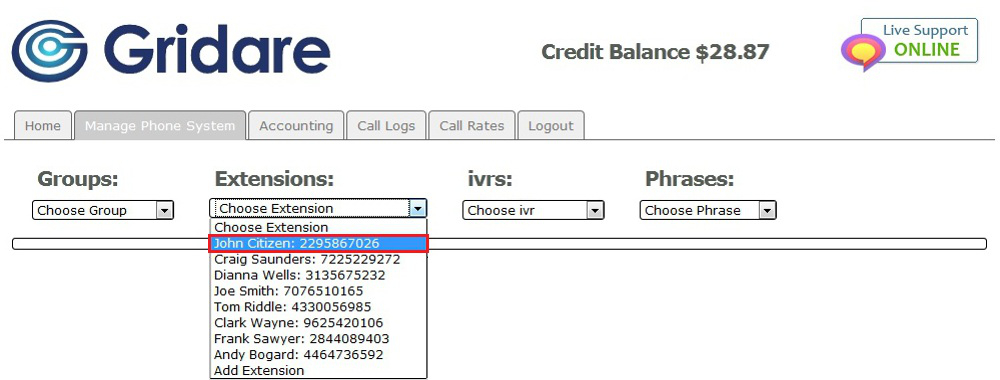
  • Go to Extensions; click the drop down menu and choose the extension (e.g. John Citizen: 2295867026) that you want to enable


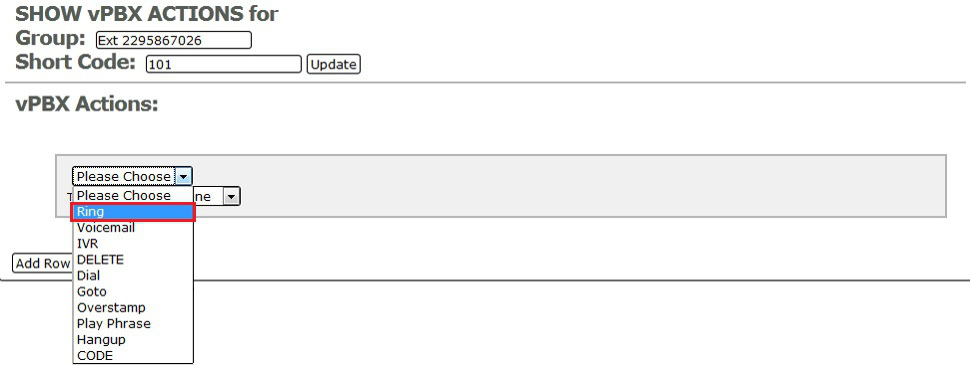
  • Under vPBX Actions click on Add Row


  • Click the drop down menu of the newly created row and choose Ring


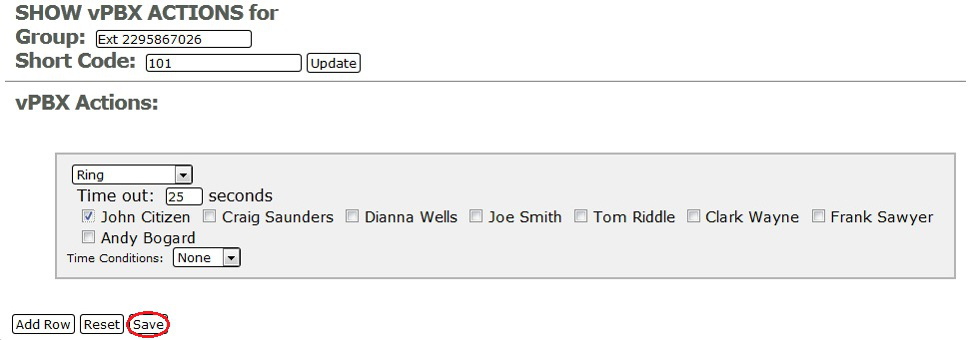
  • On Time Out; set how long you would like your phone(s) to ring (e.g. entering 25 seconds will ring your phone(s) for 25 seconds)


  • Put a tick or enable the phone or extension that you want to ring


  • Click on Save at the bottom to save the settings you made


     NOTE: Just repeat the same process you did with the first extension to enable receiving incoming calls. All the Yealink Phones we send out are all plug and play; all you need to do is set it up on your online account.

     Doing all the steps above will ensure that your phone will ring and work.


RELATED LINKS (29 RESULTS): FAQ - Virtual PBX


REMINDER: You can also download the attached PDF version of this tutorial.


Share via
Did you find this article useful?  

Related Articles


Comments

Add Comment

Replying to  

© Gridare Pty Ltd