There was a problem loading the comments.

How can I add a time based rule?

Support Portal  »  Knowledgebase  »  Viewing Article

  Print

You can add a time based rule by doing the following:

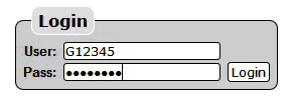


  • Log in using your Account ID: e.g. G12345 & the password sent to you by Gridare (which you can see from the Gridare Welcome Email)


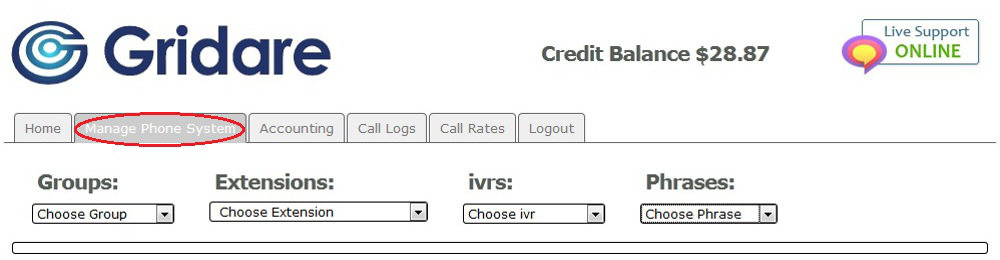
  • Once logged in go to the Manage Phone System tab


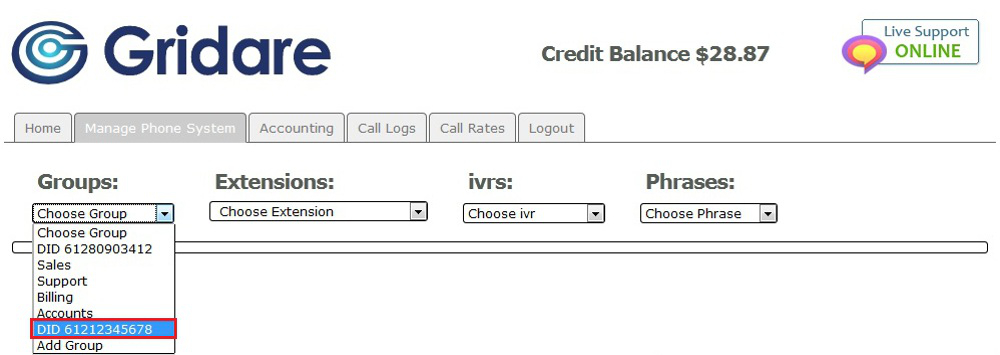
  • Go to Groups and choose the group (e.g. DID 61211223344) that you want to edit


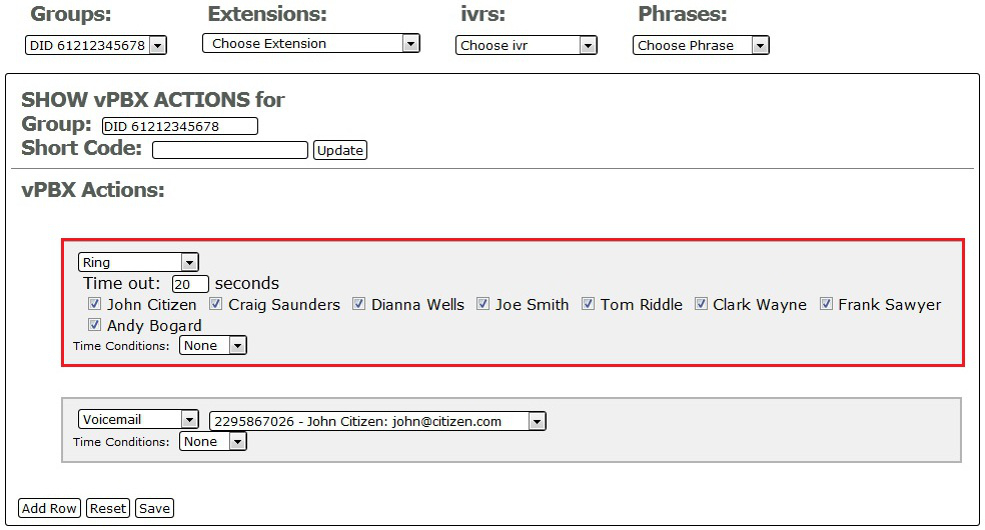
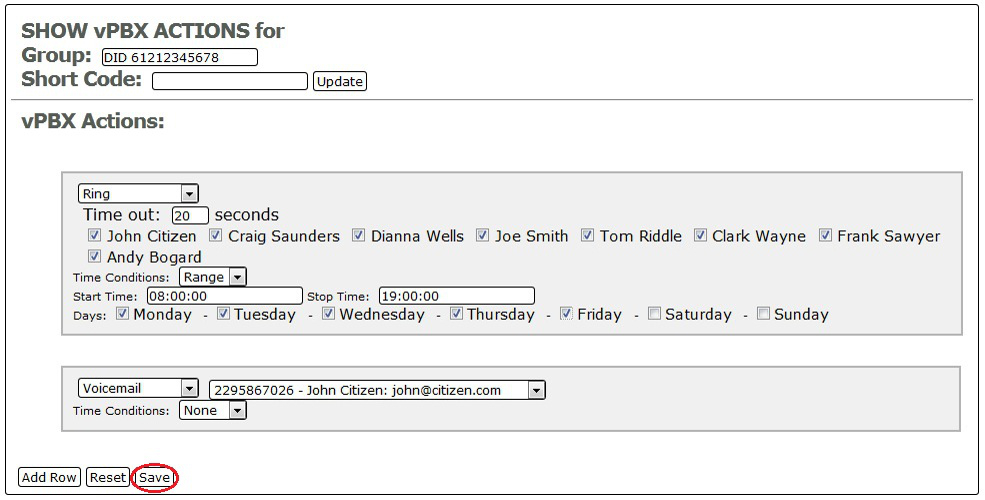
  • Under vPBX Actions choose the row that you would like to add a time based rule


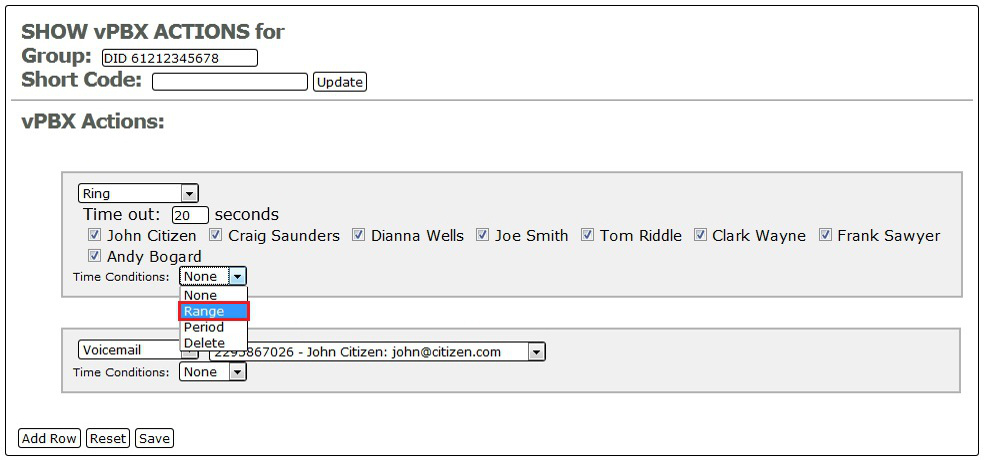
  • Go to Time Conditions; click the drop down menu and choose Range


  • Set the Start Time and Stop Time using the following format HH:MM:SS


  • Choose the days that you would like the time condition to apply (e.g. put a tick on Monday, Tuesday, Wednesday, Thursday and Friday)


  • Click on Save at the bottom to save the settings


RELATED LINKS (29 RESULTS): FAQ - Virtual PBX


REMINDER: You can also download the attached PDF version of this tutorial.


Share via
Did you find this article useful?  

Related Articles


Comments

Add Comment

Replying to  

© Gridare Pty Ltd